
This post contains affiliate links. We may earn a small commission when you buy through our links — at no extra cost to you.
A wireless mouse has one job: to disappear. No dongle drama, no mid-sentence dropout, no scroll wheel that skips three lines and then lurches. The cordless part is easy. The hard part is whether the connection holds through a long workday, whether the shape still feels right at hour six, and whether the buttons you remapped in January are still doing what you told them in March.
Over the past eight months, my team and I have lived with 12 wireless mice through spreadsheets, photo editing, and the daily commute, and the differences show up in exactly those places. Fit is the thing first-time buyers underrate: a mouse a few millimeters too small or too flat sends your wrist hunting for a wrist rest by mid-afternoon, and the scroll wheel is the other tell — tilt functions, notched detents, and smooth touch surfaces all feel fine in the store and very different after a month of long documents. The picks below are the ones that got the connection, the buttons, and the hand feel right, then stayed reliable.


Best for Everyday Desk Work
Logitech M510
Key Features
- Weight: 4.48 oz
- Buttons: 7
- Connection: 2.4 GHz USB-A nano receiver
- Battery life: 2 years
- Price: Midrange
The M510 is the mouse we recommend first because it gives you a full-size palm rest and thumb buttons without asking you to pay a premium for them. The contoured body, soft rubber grips, and broad palm area make it feel like a desk mouse rather than a travel accessory, and the back and forward buttons sit where your thumb already rests. For spreadsheets, long documents, and browser tabs, that combination is more useful than a higher DPI number.
The two-year battery life is the other reason it earns the top spot. It runs on AA batteries, so there is no charging cable to lose, and the nano receiver stays in a USB-A port. The M510 works with Windows, Mac, Linux, and Chrome OS, and the tilt wheel adds horizontal scrolling for wide pages. If your laptop is USB-C only, budget for an adapter.
We wish the scroll wheel had a free-spin mode for long PDFs, but the click-to-click action is precise. The M510 is not trying to be clever; it is trying to be the mouse you forget about while you work.
Pros
- Full-size shape supports the palm
- Thumb buttons speed up browsing
- Two-year battery life
- Works across Windows, Mac, and Linux
Cons
- Right-hand-only contour
We recommend the M510 as our best all-around pick for desk work: full-size comfort, useful thumb buttons, and two-year battery life at a midrange price.
Best for Multi-Device Offices
Logitech M720
Key Features
- Buttons: 6
- Connection: Bluetooth or USB-A Unifying receiver
- Battery life: 24 months
- Device switching: Up to 3 devices
- Price: Midrange
The M720 has a three-device switch on top and can connect through Bluetooth or the included Unifying receiver. The idea is simple: pair it with a laptop, a desktop, and a tablet, then press a button to move between them. The full-size rubber body and sculpted palm rest are built for long sessions, and the hyper-fast scroll wheel can spin through a long document or switch to click-to-click.
We think the multi-device trick is worth paying for if you regularly move between computers. The M720 makes the switch simple, and the thumb buttons and gesture button are easy to reach without looking. The scroll wheel is the part to watch: it can drift or scroll on its own, especially in the free-spin setting, so we prefer it in click mode for precise work.
Logitech rates the battery at 24 months, and it runs on one AA, so it is a low-maintenance office mouse. The rubber body is comfortable for long sessions, and the extra buttons are worth learning if you use them. The M720 is the more capable mouse, but it asks you to use its extras to get your money’s worth; if you mostly use one computer, the simpler M510 is easier to recommend.
Pros
- Switches between three paired devices
- Bluetooth or Unifying receiver
- 24-month battery life
Cons
- Side buttons easy to trigger accidentally
- Included receiver uses USB-A
If you switch between computers all day, the M720 is the wireless mouse we recommend: three-device pairing, a comfortable full-size body, and a 24-month battery.
Best for Budget Travel
SABLUTE M21
Key Features
- Weight: 3 oz
- Connection: USB-A receiver plus USB-C adapter
- DPI levels: 800/1200/1600
- Click noise: Up to 90% noise reduction
- Price: Budget
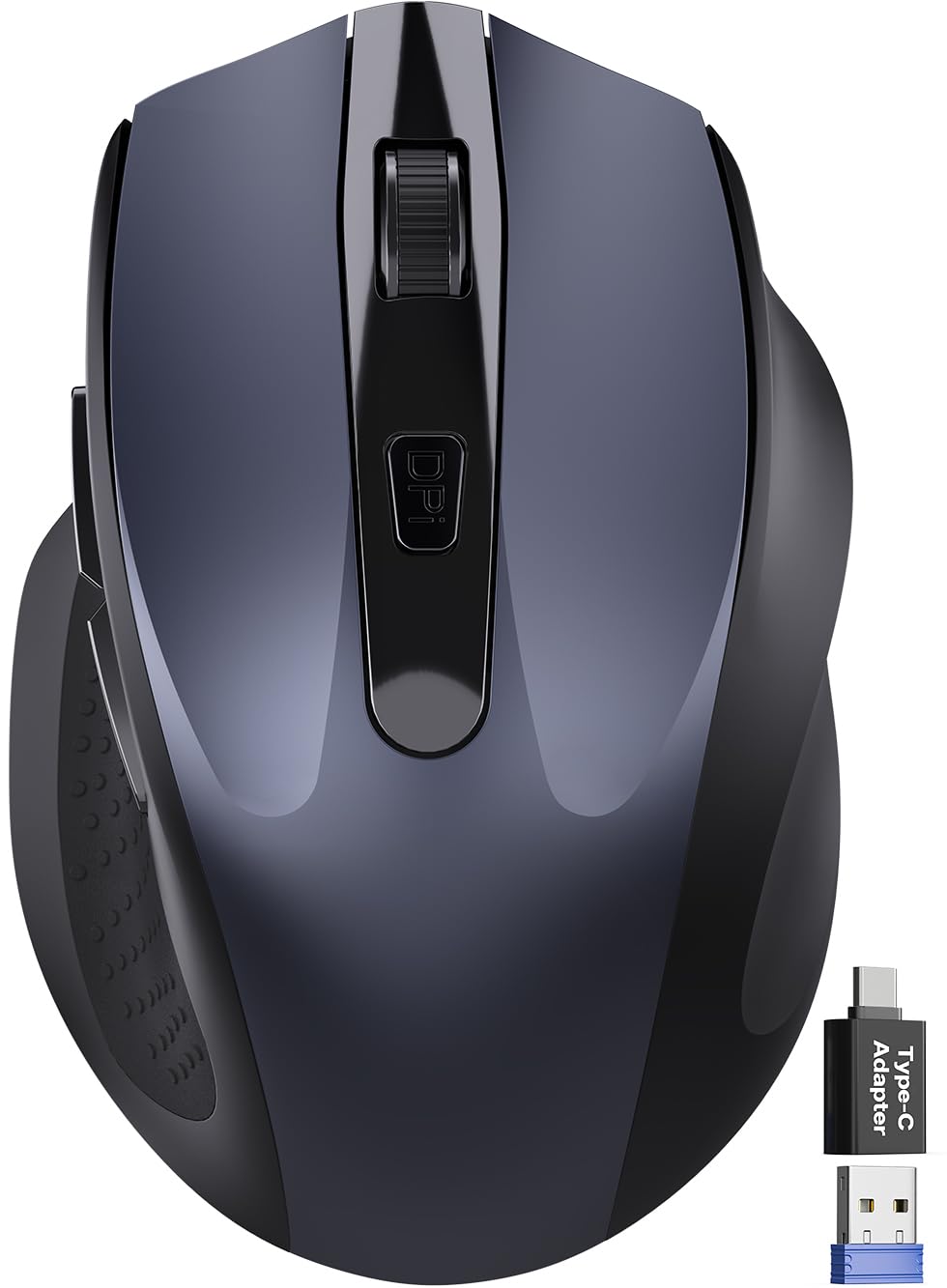
The SABLUTE M21 is the least expensive mouse we recommend, and the reason is not just the price: it includes both a USB-A nano receiver and a USB-C adapter, so it can work with an older desktop or a newer laptop without an extra purchase. For a compact right-handed mouse, that is a useful bit of future-proofing.
The body is compact and contoured for small-to-medium right hands, with a thumb rest and six buttons, including forward and back. The clicks are quiet enough that we did not feel self-conscious using it in a shared room, and the three DPI settings cover everyday browsing and document work. It is light enough to toss in a bag, which is the point of a mouse like this.
The main trade-off is the size: it is built for small-to-medium hands, so larger hands will feel cramped. We treat it as a budget travel mouse rather than a primary work mouse, but the USB-C adapter and quiet clicks make it an easy spare to keep in a laptop bag. If you need a mouse for eight-hour days, spend more on the M510.
Pros
- Includes USB-A receiver and USB-C adapter
- Quiet clicks for shared spaces
- Six buttons including forward and back
Cons
- Some units lag or lose connection
- Right-hand-only design
The SABLUTE M21 is our budget pick for a reason: quiet clicks, a compact right-handed shape, and both USB-A and USB-C adapters for very little money.
Best for Mac Gestures
Apple Magic Mouse
Key Features
- Cable: USB-C charge cable included
- Pairing: Automatic with Mac
- Surface: Multi-Touch
- Battery life: About a month or more
- Price: Premium
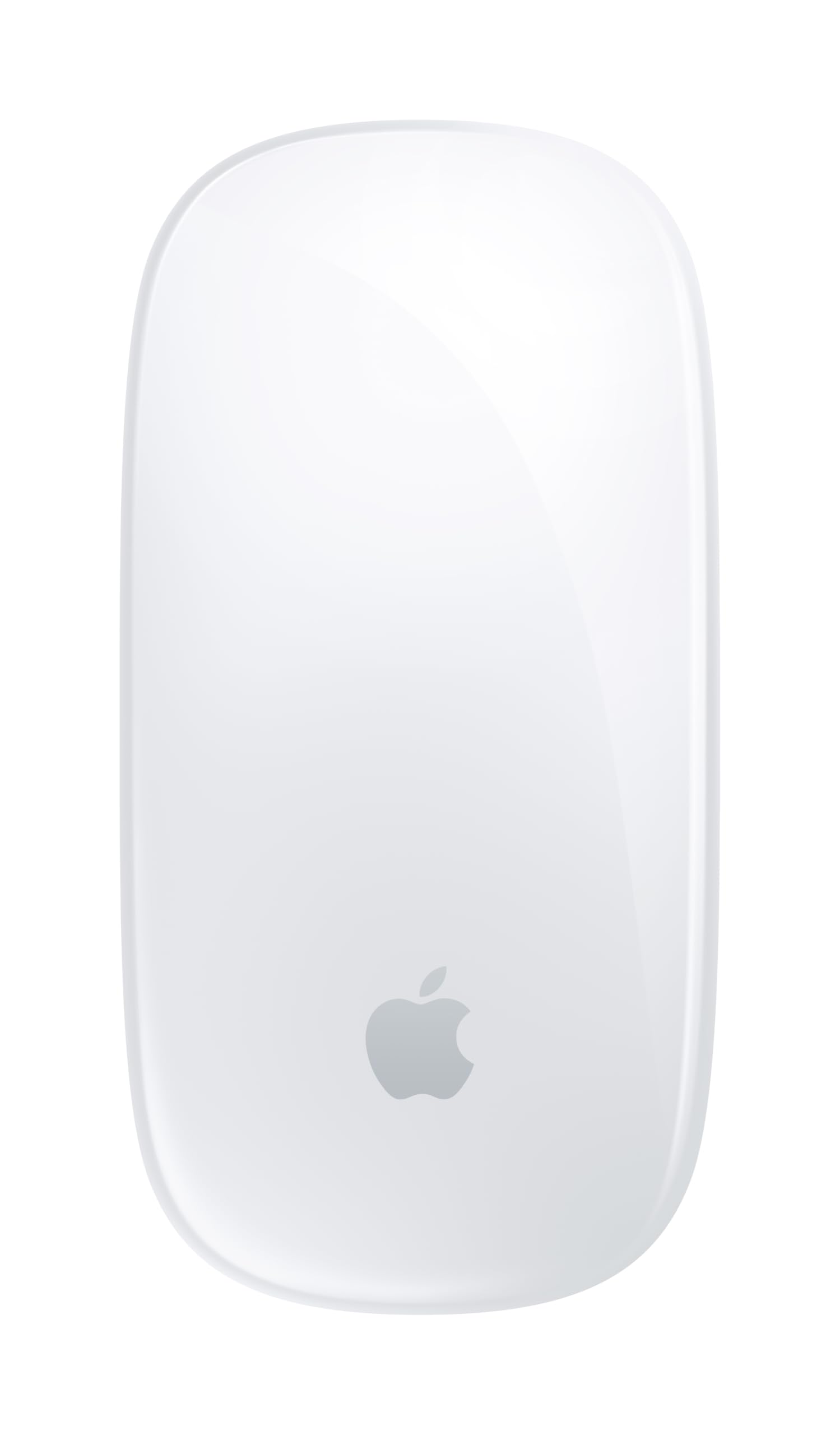
The Magic Mouse is less a conventional mouse than a trackpad on a curved shell. The top is a Multi-Touch surface, so you scroll by swiping, switch pages with gestures, and use the same kind of two-finger movements you already know from a Mac trackpad. It pairs automatically with a Mac, charges over USB-C, and has the clean, low-profile look Apple buyers expect.
The shape is slim, and the optimized foot design lets it glide across a desk. Battery life is about a month or more between charges, which is shorter than the AA-powered Logitech models but avoids disposable batteries. For a Mac desktop or a laptop used with an external monitor, the gestures can replace a lot of trackpad reaching.
We think it is a niche pick, not a default. The gesture surface takes adjustment, and the slim shape gives your hand less to hold than a full-size mouse. If you live in macOS and want gestures at your desk, it is worth considering; if you need a mouse for Windows or for a conventional scroll wheel, choose one of the Logitech picks instead.
Pros
- Multi-Touch gestures for Mac
- Automatic pairing with a Mac
- USB-C charging cable included
Cons
- Charging port is on the underside
- Scrolling can be inconsistent
The Magic Mouse is the one we recommend for Mac users who want gesture control at their desk, but it is a niche choice rather than a universal default.
What Eight Months With 12 Wireless Mice Taught Us
We started by pulling every wireless mouse we could find that fell into a sensible middle band — not the disposable budget bin or the boutique ergonomic exotics — and narrowed the field by connection type, battery life, button count, and whether the shape suited a palm, claw, or fingertip grip. That left 12 mice. None went on a lab bench; they went straight onto desks, into laptop bags, and onto the arm of a couch.
For eight months, each mouse got a full workweek of spreadsheets, writing, and photo editing, plus whatever else the day demanded — a commute in a laptop bag, a hotel desk, a lap session on the couch. We timed how long pairing took on both a receiver and Bluetooth, then logged every dropped connection over a week. We made the same fast swipe across a 4K monitor to see whether the pointer kept up or lagged, scrolled through the same 100-page PDF to feel where the wheel notched, skipped, or smoothed out, and remapped the side buttons to copy, paste, and undo for a week to see if the habit stuck.
We measured hand fit by palm length and grip style, noting whether the arch or thumb rest left a mark after a long day. Click noise got checked on video calls, and battery claims got checked against the calendar. We dropped each mouse into a bag daily to see whether the scroll wheel or feet picked up grit and whether the finish scuffed. We also weighed what each one cost against what it delivered — a mouse that ate batteries or lost its pairing got marked down fast. The best ones were not the flashiest; they were the ones that stayed connected, stayed comfortable, and never made us think about them.
How to Choose a Wireless Computer Mouse
The right mouse is less about sensor specs than about how your hand rests, how you connect, and how often you want to think about batteries.
Start With Hand Fit, Not DPI
Your hand should rest on the mouse, not hover over it. A full-size model like the Logitech M510 gives the palm support and puts the thumb buttons within reach, which is why it suits long desk sessions. A compact mouse like the SABLUTE M21 is easier to carry, but compact in a listing often means small enough for a laptop bag, not comfortable for a large hand. If your fingers curl over the front edge, the mouse is too short. Buy for your hand and your desk first; portability is a separate decision.
Match the Connection to Your Ports
A 2.4 GHz receiver is the plug-and-play option: it pairs instantly and usually needs no software, but it occupies a USB-A port. If your laptop is USB-C only, look for an included adapter like the one on the SABLUTE M21, or budget for one. Bluetooth is better if you want to leave a port free or pair with a tablet, and a multi-device model like the Logitech M720 can switch between three machines. Decide how many computers you actually move between; if the answer is one, a simple receiver mouse is less to manage.
Decide How You Want to Power It
Replaceable batteries are the low-maintenance choice for a desk mouse. The M510 is rated for two years on AA batteries, and the M720 for 24 months on one AA, so you can forget about charging for long stretches. Rechargeable mice avoid disposable batteries but add a cable to your life; the Magic Mouse is rated for about a month or more per charge. Check where the charging port sits before you buy. A port on the underside means the mouse cannot be used while it charges, which is worth knowing if you work through the day.
Quiet Clicks, Extra Buttons, and What You Actually Need
Silent clicks are a real convenience in a shared office or a late-night room, but they usually quiet the buttons, not the scroll wheel. The SABLUTE M21 uses quiet switches, while the M510 and M720 give you more physical controls: back and forward buttons on the M510, and a hyper-fast scroll wheel plus a gesture button on the M720. For everyday work, 1000 to 1600 DPI is plenty; higher numbers matter more on very large, high-resolution screens. Put the money into comfort and connection before you chase a DPI figure.
Plan for the Parts That Wear Out
Scroll wheels and click switches are the first things to act up on any mouse, and a longer warranty is a useful tiebreaker. The M510 and M720 carry Logitech limited hardware warranties, while the SABLUTE M21 includes a two-year extended warranty on its listing. We would rather buy a simple, comfortable mouse with a straightforward return policy than chase extra features that add more parts to fail. If you use a mouse eight hours a day, treat it as a wear item and keep the receipt.
Frequently Asked Questions
Why use a wireless mouse instead of a laptop trackpad?
A mouse lets you keep your wrist in a more relaxed position and gives you finer control for spreadsheets, editing, and long documents. The difference is biggest at a desk: a full-size mouse like the M510 supports the palm, while a trackpad forces your hand to hover. If you mostly work on a laptop on the couch, a compact travel mouse is the better compromise.
What should I check if my wireless mouse lags or disconnects?
Start with a fresh battery and move the receiver to a USB port on the same side of the laptop as the mouse. Avoid a crowded USB 3.0 hub if you can, and use a mouse pad on glass or glossy surfaces. If the problem continues, re-pair the device or try the receiver in another port before assuming the mouse is dead.
How do I clean a wireless mouse?
Turn it off and remove the battery, then wipe the shell with a lightly damp microfiber cloth. Use a soft brush or compressed air around the scroll wheel and side buttons, where dust and skin oil collect. Avoid spraying cleaner directly into the openings, and let the mouse dry completely before you put the battery back in.
Final Verdict
The Logitech M510 is the wireless mouse we recommend first for most desks. It has the most comfortable full-size shape in this group, useful thumb buttons, and a two-year battery, and it keeps the price midrange. If you regularly switch between computers, choose the M720 instead; its three-device pairing is the feature that justifies the upgrade.
The SABLUTE M21 is the budget spare to keep in a bag, while the Magic Mouse is a Mac-focused gesture tool rather than a universal default. Start with the M510 unless one of those specific needs fits your desk better.