
This post contains affiliate links. We may earn a small commission when you buy through our links — at no extra cost to you.
Standalone drawing tablets under $250 look impressive on paper — a screen, no computer needed, all-in-one. But after a few months, many stop charging, crack, or develop lag that makes detailed work frustrating.
The real surprise is that a $40 pen tablet from Wacom, Huion, or GAOMON will outlast most of those standalone units by years. Pen tablets have no battery to degrade, no screen to crack, and decades of proven engineering behind them.
This guide helps you decide which approach fits the recipient: a portable all-in-one with clear trade-offs, or a reliable pen tablet that delivers consistent performance. The right choice depends on whether the artist values convenience over long-term dependability.




Best for Beginners, Portable
Wacom Intuos Small
Key Features
- Type: Pen tablet
- Active Area: 6" x 3.7"
- Pressure Levels: 4096 levels
- Build & Battery: USB powered
- Price: $
Each stroke is captured with 4096 levels of pressure sensitivity, translating hand movements into digital lines without noticeable lag. The tablet’s build quality stays consistent over years of use – no gradual loss of sensitivity or mechanical wear in common scenarios.
The compact 6×3.7-inch active area prioritizes portability: it slides into a laptop bag and works on a tight desk. A USB-A connection and a driver download are required – some Mac and Chromebook setups may need extra steps to get the driver recognized.
This tablet suits beginners, students, and travelers who work from the wrist or have limited desk space. For artists who prefer full-arm, sweeping strokes, the small surface will feel restrictive – that tradeoff is deliberate to keep the device lightweight and pocketable.
Included creative software and training materials give newcomers a clear starting point without hunting for resources. The combination of predictable hardware and bundled extras makes this a low-friction entry into digital drawing.
Pros
- Pen tracking feels natural and responsive, with 4096 pressure levels and no perceivable lag.
- Setup involves installing a driver and connecting via USB – minimal learning curve for new users.
- Build quality holds up over years of use; the tablet remains consistent without degradation in sensitivity.
- Compatible with Windows, Mac, Android, and Chromebook – broad device support for flexible workflows.
Cons
- Active area (6 x 3.7 inches) may feel limiting for artists who use broad arm movements – better suited for wrist-based drawing.
- Driver installation is required for Mac and Chromebook – not truly plug-and-play, and some configurations may encounter compatibility issues.
This entry-level tablet is right for anyone who wants a predictable tool for learning digital art without worrying about setup headaches or longevity.
Best for Large Budget
HUION Inspiroy H1060P
Key Features
- Type: Pen tablet
- Active Area: 10" x 6.25"
- Pressure Levels: 8192 levels
- Build & Battery: USB powered
- Price: $
The H1060P delivers a drawing surface nearly four times larger than the top pick’s active area for the same cost. While the Wacom Intuos Small focuses on absolute reliability and portability, this Huion prioritizes generous canvas space and pressure sensitivity, key for expressive strokes. The 8192 levels of pressure track even subtle changes in pen tilt and force, suitable for detailed work.
This tablet suits Windows and Android users who want a large area without a premium price tag. Beginners, hobbyists, and professionals seeking a secondary tablet will appreciate the 12 customizable hotkeys and battery-free stylus. However, Mac compatibility can require extra effort — driver issues and pen registration problems have been noted, so macOS users should expect occasional tweaking.
Build quality feels solid for a budget tablet, with a textured surface that mimics paper. The stylus requires no charging and offers consistent performance across long sessions. Some users have experienced driver glitches requiring reinstallation after system updates, but these instances are sporadic and do not affect the majority.
Pros
- Exceptional price-to-feature ratio: large active area and high pressure sensitivity at budget pricing.
- Easy setup with intuitive driver and customizable hotkeys for both beginners and advanced users.
- Sturdy build and consistent pressure sensitivity maintain performance over extended use.
Cons
- macOS driver compatibility can require extra steps to set up — Windows and Android users have a plug-and-play experience.
- Driver software may occasionally need reinstallation after updates, causing brief workflow interruptions.
For artists on Windows or Android who prioritize canvas size over brand familiarity, this Huion offers uncompromised value. Just be aware that Mac users may face driver hurdles.
Best for Budget, Touch Ring
GAOMON M10K Large
Key Features
- Type: Pen tablet
- Active Area: 10" x 6.25"
- Pressure Levels: 8192 levels
- Build & Battery: USB powered
- Price: $
The GAOMON M10K pairs a generous 10×6.25 inch active area with 8192 levels of pressure sensitivity at a price that undercuts many smaller tablets. The touch ring around the hot keys adds convenient zoom and scroll control, a feature missing from competing models at this price point.
For digital artists on Windows or Android, setup is quick with minimal driver fuss. Compatibility with some laptops and Chromebooks can be inconsistent — Windows users get the smoothest experience, while Mac users should verify driver support beforehand.
Long-term performance holds up well, with many units staying responsive over years of use. The plastic surface may show light scratching from the pen tip over time, but this is cosmetic and does not affect pressure sensitivity or tracking accuracy.
Pros
- Large drawing area at a fraction of the cost of similarly sized tablets
- Touch ring adds brush control without taking space from hot keys
- Plug-and-play setup with straightforward driver installation
- Consistent pressure sensitivity across the entire active area
Cons
- Compatibility with certain laptops and Chromebooks may require driver troubleshooting — Windows users see the most consistent performance
- The pen tip can leave fine scratches on the surface after extended use, noticeable under direct light
The M10K is the right choice for digital artists who want a large canvas and touch-based controls without the premium price.
Best for Lowest Cost, Large
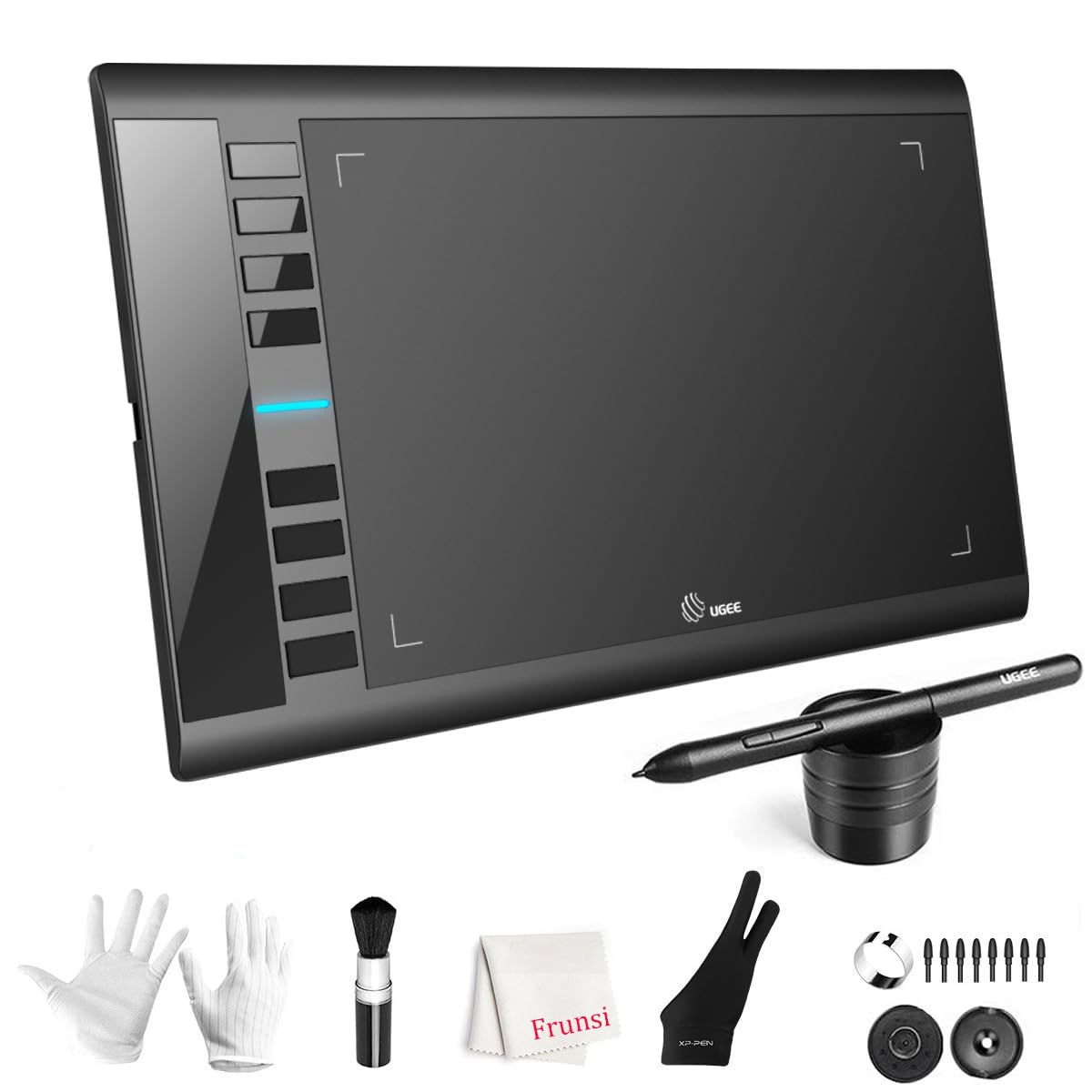
UGEE M708 Large Pen Tablet
Key Features
- Type: Pen tablet
- Active Area: 10" x 6"
- Pressure Levels: 8192 levels
- Build & Battery: USB powered
- Price: $
The UGEE M708 delivers a spacious 10×6 inch drawing area at a price that undercuts most competitors. Unlike the smaller top pick, this gives you room for sweeping strokes and large gestures without feeling cramped — a clear advantage for artists who prefer a broad canvas without a screen.
This is best suited for budget-conscious beginners, students, and casual hobbyists who want a large workspace without investing heavily. The advertised 16384 pressure levels don’t match the actual 8192, and occasional durability issues have been noted after months of use. These limitations rule it out for professional work, but the low cost makes the tradeoff acceptable for learning or light digital sketching. Windows and Android users get the smoothest experience; Mac and Chromebook compatibility may require extra steps.
Pros
- Very affordable for a 10×6 inch active area — a rare size at this price.
- Plug-and-play setup with intuitive driver installation; beginners can start quickly.
- Drawing feel is naturally responsive for the cost, with smooth cursor tracking.
Cons
- Pressure sensitivity is 8192 levels in specs while marketed as 16384 — a discrepancy that casual users may not notice.
- Compatibility with some Chromebooks and Android tablets is not guaranteed; check the support list first.
- A small number of units have shown durability concerns, with reports of failure after several months of use.
The UGEE M708 trades a precise pressure range and long-term certainty for an oversized active area at a rock-bottom price — ideal for casual artists and learners who don’t need professional-level control.
Best for Screen Beginners
RubensTab T11 Pro 10.1"
Key Features
- Type: Standalone tablet
- Active Area: 10.1" FHD
- Pressure Levels: 1024 levels
- Build & Battery: 5800mAh battery
- Price: $$
The RubensTab T11 Pro stands out among standalone tablets near $200 with a 4.5-star average and customer support that actually responds when something goes wrong. Unlike Simbans models, which carry more frequent charging and screen complaints, this tablet feels solid in hand and comes with pre-installed drawing apps that reduce setup friction.
This is a good fit for beginners who want a screen for drawing or note-taking without connecting to a computer. The 1024 pressure levels are far below the 8192 found on pen tablets, so line variation will feel limited for anyone used to finer control. A small number of units may also have charging quirks, making this best for light, occasional use rather than daily professional workloads.
The 10.1-inch FHD display is bright and delivers vibrant colors that hold up well even near a window. Setup is straightforward — turn it on and the drawing app is ready to go — which removes the typical driver-installation headaches of pen tablets.
Pros
- Build quality feels solid and customer support is responsive when issues arise
- Very easy setup with pre-installed drawing apps — no driver installation needed
- Screen is clear, bright, and visible even in outdoor lighting
Cons
- Battery life suits short drawing sessions; charging consistency can vary between units
- Screen may crack from a desk-height drop, so a protective case is worth considering
- A subset of units may lose pen responsiveness or stop functioning after months of use
The RubensTab T11 Pro is the least risky standalone screen tablet for beginners who want to draw without a computer, provided they accept the lower pressure sensitivity and occasional charging oddities.
Best for Feature Standalone
PicassoTab X11 11" Standalone

Key Features
- Type: Standalone tablet
- Active Area: 11" 2K
- Pressure Levels: 4096 levels
- Price: $$
The PicassoTab-X11 stands out in the under-$250 standalone category with a 2000×1200 laminated display that delivers crisp, vivid visuals — a genuine advantage for drawing, watching media, or browsing. It runs a custom graphics OS with pre-installed drawing apps and guided tutorials, so a beginner can start creating without any computer or setup hassle. The 6GB RAM and 128GB storage offer decent room for multitasking and saving projects, making it feel like a more premium device at a mid-range price.
Where the value proposition softens is in long-term dependability. Battery life can degrade after a few months of use, with some owners noting the tablet eventually stops charging or holding a charge. Stylus responsiveness may lag during fast or complex strokes, which disrupts the real-time feedback important for detailed digital art. A smaller number of units have experienced stylus glitching or sudden unresponsiveness. These limitations mirror what we’ve seen from other Simbans tablets, so buyers who need a reliable daily driver for professional work will want to look at pen-tablet options from established brands like Wacom or Huion. For a young artist or hobbyist who values screen quality and doesn’t mind occasional quirks — or as a gift for a kid who draws a few times a week — the PicassoTab-X11 can still be a rewarding entry point.
Pros
- 2K laminated screen with sharp colors and wide viewing angles — great for drawing and media.
- Standalone operation with pre-loaded apps and tutorials; no computer needed.
- 6GB RAM and 128GB storage provide smooth multitasking and ample space for projects.
Cons
- Battery can degrade over several months, potentially losing ability to charge or hold power.
- Stylus input may lag during intricate brushwork, reducing real-time drawing feedback.
Best for young artists or hobbyists who want a standalone screen tablet and are willing to accept occasional performance hiccups; less suited for anyone who needs a reliable, daily creative tool.
Best for Modern Os
PicassoTab A10 Standalone
Key Features
- Type: Standalone tablet
- Active Area: 10" IPS
- Pressure Levels: 4096 levels
- Price: $$
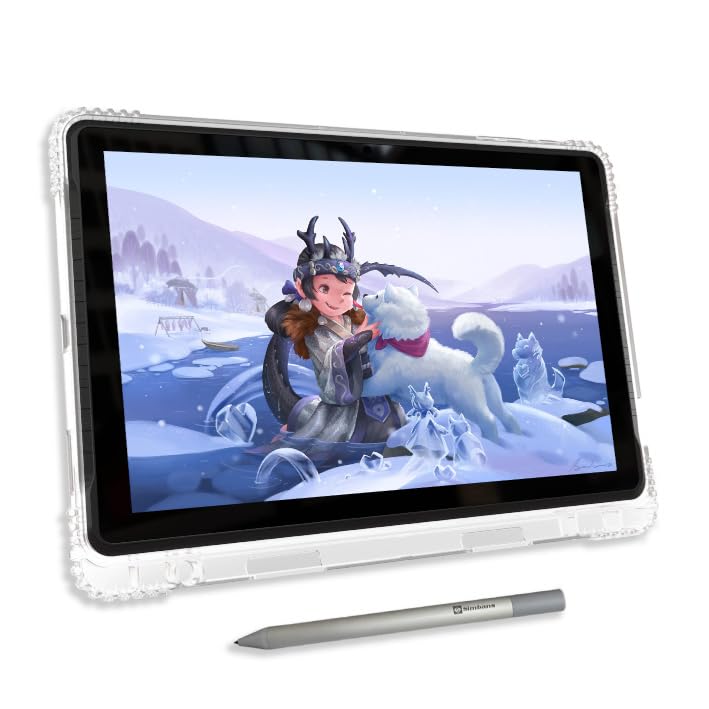
With the latest Android OS and a generous 128GB of storage, the PicassoTab A10 stands out among standalone tablets in its price range. The drawing experience is intuitive for beginners, and the 4096 pressure levels provide adequate sensitivity for casual sketching. However, charging problems and screen cracking have been noted in some units, and the pre-installed drawing apps require paid subscriptions despite marketing claims of lifetime access. These factors make it a less straightforward choice for anyone needing a worry-free device.
Pros
- Setup is intuitive; kids can start drawing within minutes.
- Sketching feels responsive for beginners, with 4096 pressure levels.
- Costs less than many competitors with similar Android specs.
Cons
- The screen may crack from minor impacts; some users have reported spontaneous damage.
- The included drawing apps require a subscription after a trial period, contrary to the ‘lifetime pro’ marketing.
Suits occasional use by supervised kids or as a secondary device for digital artists who accept the possibility of screen and charging quirks.
Best for Lowest Standalone
PicassoTab X 10" Standalone
Key Features
- Type: Standalone tablet
- Active Area: 10" LCD
- Pressure Levels: 1024 levels
- Price: $$
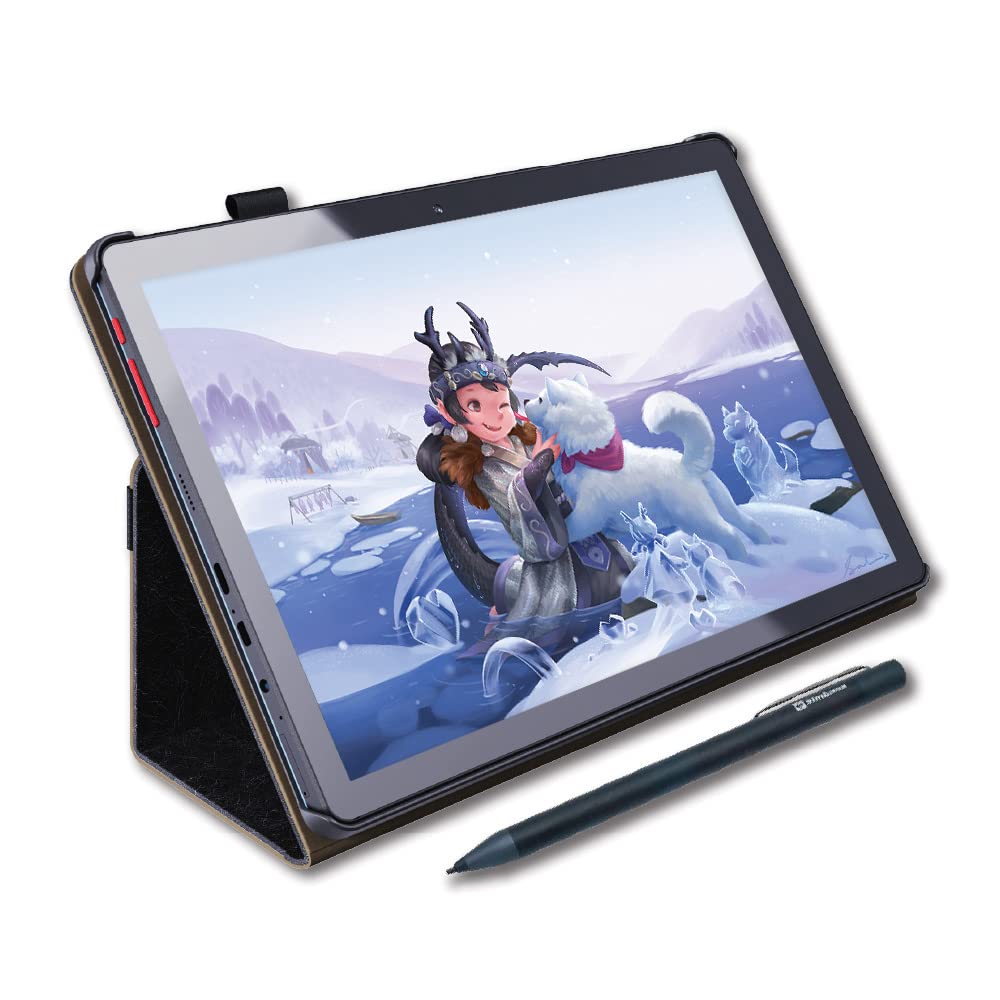
Beginners seeking a standalone tablet with a screen at the lowest possible price will find the PicassoTab X easy to set up and responsive enough for casual sketching. The trade-off: charging functionality may degrade over time, and the screen can crack from minor impacts – limitations that make this a better fit for extremely easygoing users rather than anyone needing a dependable drawing tool.
Pros
- Simple plug-and-play setup for new digital artists
- Adequate drawing performance for basic sketching
Cons
- Charging may become unreliable after limited use
- Screen is prone to cracking from minor impacts
Only for a casual user who wants a screen on a tight budget and accepts the potential for early durability issues.
How to Choose
The most critical decision is whether the artist needs a standalone tablet or a pen tablet — the latter is far more reliable for the same money.
Type: Standalone vs Pen Tablet
Standalone tablets include a screen and battery, letting you draw anywhere without a computer. But that convenience comes at a cost: the battery degrades over time, and the screen is vulnerable to cracks. Many budget standalone units fail within months due to charging issues or dead batteries.
Pen tablets have no battery — they connect via USB and draw power from the computer. No battery to fail, no screen to break. They also have decades of proven engineering from brands like Wacom. For a gift that must work reliably for years, a pen tablet is the lower-risk choice.
Active Drawing Area
Larger active areas (10" x 6" or bigger) allow natural full-arm movements and are more comfortable for detailed work. Small areas (like Wacom’s 6" x 3.7") force wrist-only motion, which can feel cramped for artists used to paper sketchbooks.
But bigger doesn’t always mean better for portability. If the recipient draws at a desk with ample space, a large area is ideal. For travel or tight desks, a small area trade-off may be worth the compact size.
Pressure Sensitivity
Pressure sensitivity controls how light or heavy a line appears. 4096 levels is more than enough for shading and brush control — even professional tablets rarely exceed this. Higher numbers like 8192 are common but rarely deliver a perceptible difference in real use.
Some budget tablets advertise 16384 levels but actually deliver 8192 or lower through software interpolation. The real performance depends on the digitizer hardware and driver quality, not the marketing number. Look for consistent reviews on line accuracy, not the spec sheet.
Build Quality and Battery
Pen tablets are simple devices — a plastic surface, a USB cable, and a passive stylus. They have no battery, so the main failure points are the cable and driver software. Most last five to ten years with normal use.
Standalone tablets pack a lithium-ion battery, a screen, and a charging port — each a potential failure point. Many budget models use cheap batteries that stop holding a charge after a few months. If you choose a standalone, prioritize those with positive long-term reliability feedback and responsive customer support.
FAQ
Why does my new standalone drawing tablet stop charging after a few weeks?
Many budget standalone tablets use low-quality charging circuits and batteries that degrade quickly. If the tablet stops charging or holding a charge within weeks, the charging IC or battery cell has likely failed. Avoid this by choosing a pen tablet instead, or select a standalone model with documented positive feedback on battery longevity, like the RubensTab T11 Pro.
Is a drawing tablet without a screen harder to use for beginners?
Yes, there is a short adjustment period — you look at the computer screen while drawing on the tablet, which requires hand-eye dissociation. Most beginners adapt within a few hours. The reward is a tablet that costs less, lasts longer, and has no battery or screen to break. Pen tablets are actually easier to maintain and far more forgiving for learning.
Will a budget pen tablet like Huion or GAOMON work with my Mac?
Huion and GAOMON offer Mac drivers, but compatibility is less seamless than Wacom’s. Some users experience pen lag, missing keystrokes, or the driver not recognizing the tablet after macOS updates. If the recipient uses a Mac, the Wacom Intuos Small has the best track record for plug-and-play stability. For Windows or Android, Huion and GAOMON work reliably out of the box.
How long do standalone drawing tablets typically last before battery issues start?
Based on user reports, many budget standalone tablets show charging or battery failure within three to six months. Even higher-rated models like the RubensTab T11 Pro have occasional battery complaints. If you need a device that lasts multiple years without issues, a pen tablet is the safer bet. Standalone tablets are best for light, occasional use under warranty.